How I manage notifications
• 7 min read
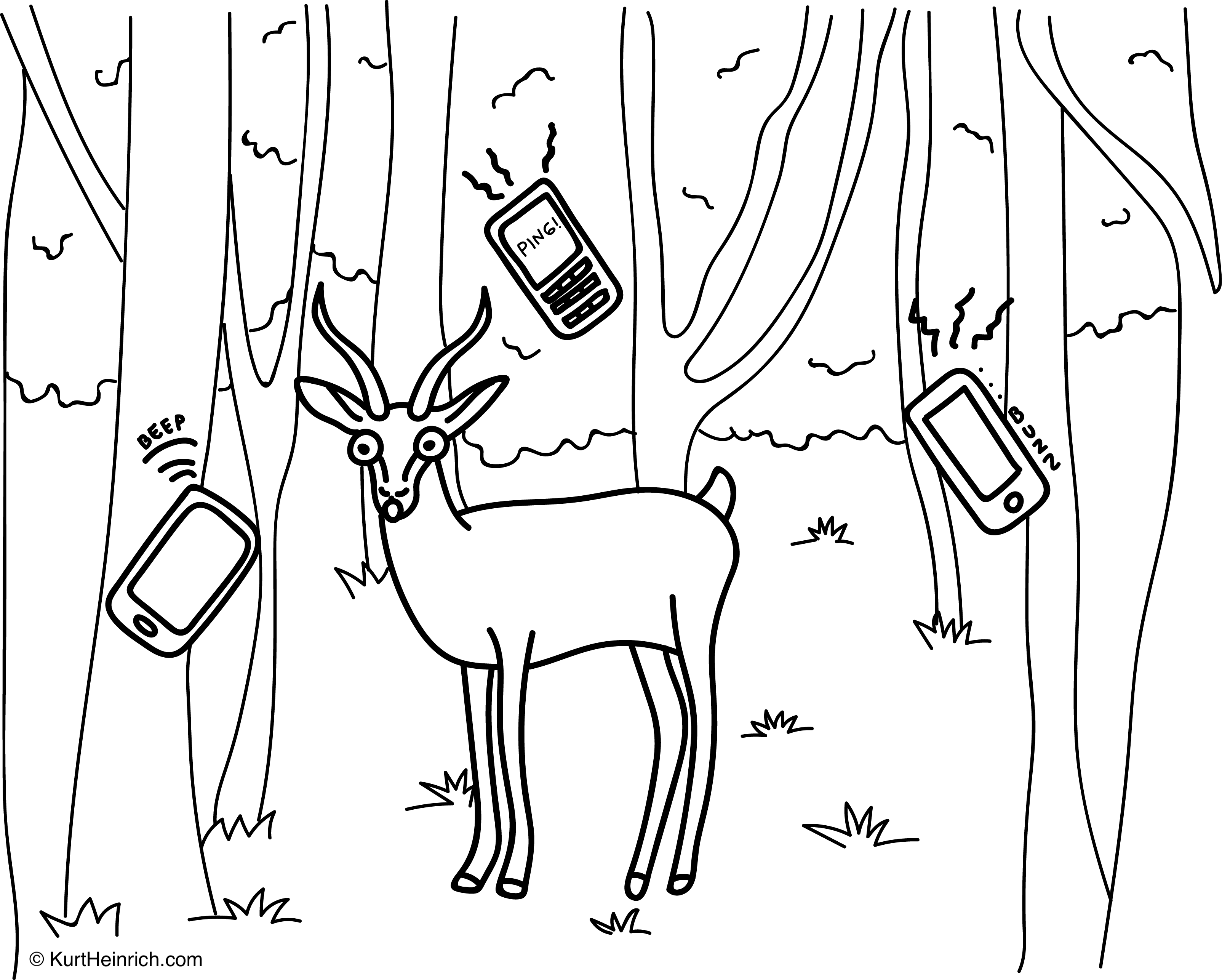
I got the idea for this post after going on a work trip recently to a conference. A co-worker sat down next to me and placed their phone face up in their lap. It was on silent and they were paying attention to the speaker, but every few minutes the screen would flicker on and a new notification would roll in. This person would glance down quickly, see what it was about, then focus their attention back to the speaker.
While this might not seem like a big deal, it reminded me of how distracting notifications can be. Every beep, buzz, ping, and vibration commands our immediate attention. It’s instinctual. Our ears perk up, we glance down, and we reach for our pocket or purse. We can’t help but crave the little dopamine reward of seeing who texted us, that email that just came in, or the “breaking” news. We’re in a forest of distraction from our own devices.
The problem is also getting worse. Between email, text messaging, news, and social media apps, the average person gets dozens of notifications a day, and I think most estimates are low. Ten years ago, how many times did you check your email? Facebook? Probably not that often because you had to be at a computer to do so. But today, everything is in our pocket and real-time. This creates an opportunity for apps and companies to exploit our attention spans.
This is why I invest a good deal of time in managing my notifications. Some people recommend turning off all notifications. I take a more targeted approach. Below I share my own personal setup and some of the tactics I use to manage notifications. Before you begin, I suggest being familiar with how notification settings on the iPhone work. If you don’t use an iPhone, that’s okay, similar tactics can be applied to Android or whatever device you’re using.
Badge notifications
I don’t know about you, but I find these little red dots incredibly annoying. They are called badge notifications. The purpose of them is to show you how many unread or updates you have in a given app that might need your attention. But I find them to be very distracting. Every time I pick up my phone, I don’t need to be reminded of how many unread emails I have or unviewed Instagram updates.
They literally create a sort of visual stress. And our psychological response to that stress is to want to make these little red dots go away. We do that by clicking on the apps, viewing the updates, reading the emails, etc. until they go away. But is that necessary?
I don’t think so. So what I prefer to do is simply disable these badge notifications. That means I turn them off for email, social media, slack, messaging apps, etc. The only one I keep is the Phone app in case someone leaves me a voicemail, which is rare. But everything else, I don’t care and don’t want to constantly be playing a game of make the dots disappear.
Social media notifications
Some people go the route of uninstalling social media apps completely from their phone. And that’s probably not a bad idea. But I prefer to keep some apps on my phone and check them only when I want to. In my case, I keep a few of the big social apps installed.
Each of these apps has its own notification settings that can be customized inside the app. I encourage you to check each one out and customize it to your liking. Instagram actually does a pretty good job of giving you control over each notification type, for example.
In my case, I disable pretty much everything except for direct messages and comments. This way I’m not getting spammed by the app, but I also won’t miss when a real human is trying to interact with me. Facebook is the exception: I’ve turned its notifications off completely.
Email notifications
Email is a more controversial one. I know a lot of people like to stay on top of their email in as close to real-time as possible. Some people keep their inbox at zero. I’m not one of them because I just simply can’t keep up with the amount of emails I get. It would be a full-time job.
So my preference, is to check email when I want to. Usually a few times throughout the day. If something is urgent, someone will call, text, or Slack me. That’s my philosophy at least.
So this means I turn off email notifications on my phone. By default, my email app notifies me each time a new email comes in, the same way the Mail app that comes with the iPhone works. If you use the Gmail app, it’s a little better because it uses AI to only notify you of the emails it thinks is important.
So how do I turn off email notifications? I actually cheat a little bit because I don’t completely turn them off. I use a little trick where I disable the “show on lock screen” setting, but keep the “show in history” setting enabled.
The naming of the settings is a bit weird, but the effect of this is that I don’t actually get notified each time a new email comes in. Additionally, by just looking at my phone I don’t see the notifications on my lock screen. But if I hold my thumb over the home button, it unlocks the lock screen and then my new email notifications show up. So I use this as a quick way to check if new emails have come in when I open my phone, but I do it on my time and schedule.
Messaging apps
I generally leave notifications turned on for messaging apps. On my phone, that’s the Messages app that comes with the iPhone, Slack, and a couple of others. I leave these turned on because these are 1-1 human interactions, which I value.
As I mentioned above though, I turn off the badge notifications. You might be thinking why? Wouldn’t you want to read each message that comes in anyway? Well, generally yes. But I don’t always want to have to open the app to do so. Sometimes I can just read the message on the notification itself. I don’t want the extra step of having to open the app so the badge notification goes away. This is especially useful for two-factor authentication texts for example or a Slack message from someone at work that I just need to read, but not necessarily reply to.
A special note on Slack: The app has a way to disable notifications outside certain hours. Given that I use the app mainly for work, I have turned this setting on so I’m not bothered outside normal working hours.
News apps
News apps will notify you anytime there’s something they deem newsworthy or “breaking,” and they’ll do it at every excuse they can get.
I highly recommend disabling any and all news notifications. Almost nothing is so urgent it can’t wait until I check, which I do a couple of times a day. If something big happens, I’ll hear about it from someone else, and real emergencies come through as emergency alerts anyway.
If you have an Apple Watch
I was skeptical of the Apple Watch at first, but I’ve found it to be useful for two reasons. One is that it’s easy to see when and where my next meeting is at with a flick of my wrist. The other is that it’s cut down on how often I check my phone notifications. How?
One cool thing about the Apple Watch is that it lets you customize notifications. So essentially you can disable certain notifications from appearing on your Apple Watch, but they’ll still show up on your phone. If you have your Apple Watch on your wrist, the notifications that show up on your phone won’t buzz or vibrate.
This is really powerful. As I mentioned above, I keep social media notifications turned on but only for direct messages. But I actually turn these off on my Apple Watch because they are not that urgent. I’ll see them next time I check my phone. But I do leave on text messages in case family or someone texts me that’s important.
Another Apple Watch trick you can disable notifications from vibrating on your wrist, but still have them show up on the Watch itself. The way you do this is by turning off “Sound” in the notification settings on your iPhone.
An endless game of whack-a-mole?
The sheer amount of notifications can be frustrating and feel like an endless game of whack-a-mole. However, over time it gets better if you take actions to control them. One thing I try to do is each time I get a notification for something that’s not valuable, I take the extra 20 seconds to go into settings and disable that notification.
This might seem like a lot of work and it’s definitely tedious. But I find that it’s time well spent. Think of how many micro distractions, interruptions, and extra stress you have throughout the day otherwise. If you don’t take the time to control your notifications, then you’re being controlled by them.
Update, September 2026
Looking back, the rule underneath all of this is simple: only a person who’s waiting on me gets to interrupt me. Everything else waits until I look.
It held up. Most of what I turned off in 2018 is still off, and the settings carried over to every new iPhone since, so I haven’t had to redo any of it. I barely use Focus modes for work and personal, because there isn’t much left to filter. The only upkeep is saying no when a new app asks to send notifications.